This guide follows the official standard and adds notes on top of it. It covers the Seedance 2.0 family (2.0, 2.0 Fast, and 2.0 Mini). A good prompt is what lets Seedance show what it can do.
Basic formula
The Seedance 2.0 series model supports referencing multimodal assets such as videos, images, and audio at the same time. It can accurately lock in characteristics such as character appearance, action effects, visual style, and voice-over timbre, greatly lowering the threshold for writing prompts. Based on this, guide the model with a simple basic formula, using the features of multimodal assets to quickly generate videos that meet specific requirements.
Reference-based video generation is subdivided into three types of tasks: omni reference, editing videos, and extending videos. Choose the basic prompt formula according to the task type. The three types can also be used in combination.
Omni reference
Extract some elements from the asset (such as subject, style, scene, and sound effects) to generate a brand-new video.
Applicable scenarios: action transfer, subject reuse, atmosphere reference, and similar jobs.
Recommended patterns:
- Image reference: Reference the subject in
@Image1to generate… - Video reference: Reference the motion in
@Video1to generate… - Audio reference: Reference the timbre in
@Audio1to generate…
In this studio, omni reference is Multi Reference. Type @ in the prompt box and pick the file. It is inserted as @Image1, @Video1, or @Audio1, numbered by upload order within that kind. Each thumbnail shows its token. Remove a file and the remaining tokens of that kind renumber. The pattern above still has to say which element you are taking. A token alone does not tell the model whether you want the face, the motion, the style, or the timbre.
Editing a video
Make partial or global modifications based on the original video. Parts not mentioned remain unchanged by default.
Applicable scenarios: local replacement, subject removal, attribute modification, and similar jobs.
Recommended patterns:
- Add elements: clearly describe
@Video1+ the new element + where it sits. - Modify elements: strictly edit
@Video1, and modify one element in it to another. - Delete elements: specify the elements that need to be deleted. For elements that should remain unchanged, emphasize them in the prompt for better performance.
Extending a video
Continue the original video along the time dimension, requiring the audio-video style, subject, and narrative to remain consistent.
Applicable scenarios: continuing the plot, extending actions, completing clips, and similar jobs.
Recommended patterns:
- Extend video: extend
@Video1forward or backward to generate… - Track completion:
@Video1+ what happens, followed by@Video2+ what happens next.
For edit and extend tasks, refer to the video directly: "strictly edit @Video1", "extend @Video1 forward". Do not write "reference @Video1" for these tasks. "Reference" is the omni-reference pattern, and the model can misread an edit or an extension as a brand-new clip.
Image to Video is a separate mode. A first frame and a last frame cannot be mixed with reference files in one generation. The first frame is the opening, and the aspect ratio follows that image. Turn on Add last frame when the ending frame must also be fixed, and describe only what happens between the two frames. Turn on Return last frame before generating. When the clip is ready, Continue from here uses that final frame as the first frame of the next clip, so the join is locked to a picture. That is this studio's frame-locked way to continue. The official extend formula still applies when the source is a video in Multi Reference.
Combined tasks
The three task types above can also be used in combination.
Applicable scenarios: reference one asset and edit another asset.
Recommended sentence pattern: Take one element from @Video1, such as the camera movement, an effect, or a timbre, and strictly edit @Video2. Name only that change. Everything you do not name stays.
Advanced formula
Seedance 2.0 is essentially a multimodal AI director: it reads your text prompts, images, videos, and audio simultaneously, and internally breaks them down into two dimensions, the spatial layer (what is in the frame) and the temporal layer (how things change over time), to understand and generate visuals.
A good prompt is not simply a copywriting-style description, but an engineering-style instruction: who, in what scene, doing what action, how the camera moves, and in what chronological order events occur are delivered respectively to the spatial layer and the temporal layer.
1. Define the subject
In the actual referenced asset, one image often contains multiple subjects. To precisely reference a specific object in the asset, you must clearly define the subject. The subject can be a person, a prop, a scene, and so on.
Basic definition
Core feature requirements: use 2–3 clear and stable static features (such as clothing, hairstyle, appearance, or category) to describe the subject and ensure it can be uniquely identified.
Examples:
- Define the woman wearing a red dress and a straw hat in
@Image1as Subject 1. - Define the woman wearing a red dress and a straw hat in
@Image1as Zhang Hong.
Single subject across multiple materials
When objects in multiple assets refer to the same subject, bind them consistently. Say that the face in @Image1 and the full-body photo in @Image2 are the same person.
Multi-subject scenario
When multiple subjects appear in a video, define them separately and distinguish them with labels. Labels must be unique and stable, and the corresponding labels must be used consistently in subsequent descriptions to avoid reference ambiguity.
Example: Define the tall man in @Video1 as police officer, and define the other short man as thief. The scene is set in a crowded daytime market, with bright sunlight, many fruit stalls, and dense pedestrian traffic, creating a lively street-market atmosphere. Thief runs forward in panic through the crowded market, while police officer follows closely behind at full speed. The two quickly weave through the stalls. A handheld camera rapidly tracks forward, with slight realistic camera shake, creating a tense chase atmosphere.
Each time a subject is involved, it must be explicitly referred to, to avoid omission. Two usages are supported:
- For simple scenarios with undefined subjects, each time the subject is mentioned, use @ to emphasize the binding between the subject and the asset. For example: Zhang San
@Image1. - For scenarios where subjects have been defined in advance, each time the subject is mentioned, use the same label. After the tall man in
@Video1is defined as police officer and the short man as thief, later sentences say police officer and thief, not "the tall one" and "the other man".
When using an asset library id, you still need @Image1 or @Video1 to refer to the subject. The model cannot directly associate an asset id with the reference content, so you must not use the asset id instead of the file token.
Keep descriptions as concise as possible, avoid redundancy, and avoid semantic conflicts, such as contradictory characteristics for the same subject. Express spatial relationships through reference images first, reducing complex text descriptions.
For a person, a headshot plus a full-body photo is sufficient. Multi-view character images are not recommended here, because a turnaround sheet is a common cause of ID drift.
2. Shot sequencing
The model's internal modeling decouples space and time. Therefore, the ideal prompt form for a complex video is a timeline-based storyboard: break the video into several shots, and dynamically describe each shot in the order events occur: who + where + doing what + how the camera moves.
Use shot order. Write a simple Shot 1 / Shot 2 / Shot 3 storyboard for each segment of the video, and then merge them into a complete prompt.
Negative example: "A man runs nervously down the street, and the scene feels very cinematic."
Positive example:
- Shot 1: Side shot of a street alley; the man slowly starts running, with a sense of rapid breathing.
- Shot 2: The man knocks over a fruit stand; the camera shakes quickly and gives a close-up of the man's frightened face.
- Shot 3: The man climbs over a low wall and disappears; the camera slowly pulls back and freezes on the empty street.
Use identifiers such as Shot 1, Shot 2, and Shot 3 to organize content in the order events occur, primary first, secondary later. Do not impose strict limits on the duration of each segment. Prioritize allowing the model to naturally generate the pacing based on the plot. The model's support for precise timing, such as 0–3 seconds, is unstable, and forcibly limiting duration may lead to abnormal generation results.
Organize each shot in this order:
- Camera movement or shot transition method, such as "slowly push in from a wide shot", "fixed camera position", "cut to…".
- Subject actions and expressions. Describe the key actions and changes in expression of the core character or object.
- Position or spatial changes. Explain the scene, position, or spatial relationship where the subject is located.
- Audio information. Describe the sound effects, voices, and background music corresponding to the shot.
3. Action description requirements
Body-movement refinement + degree quantification. Actions should be specific to body parts such as hands, legs, head, shoulders, and back, while also supplementing descriptions of range, speed, and force. Examples: slowly raise a hand, quickly turn the head, push hard off the ground, slightly lower the head.
Prioritize slow, gentle, continuous small movements. Prioritize slow, gentle, coherent subtle movements, and try to avoid high-burst, large-dynamic actions such as sprinting, big jumps, and violent rolls. Examples: walk slowly, gently raise a hand, slightly lower the head, sit down naturally with the motion.
Supplement transitions between actions. Specify the inertia and continuity between preceding and following actions so the on-screen movement is coherent and natural. Examples: use the inertia of turning around to naturally raise a hand, naturally transition from a pause into raising a hand.
Concrete external expression of emotions. Use specific physical details to express emotions, replacing abstract words such as "very sad" and "extremely angry."
| Abstract emotion | Externalized as actions and details |
|---|---|
| Sadness | lowering the head, shoulders trembling slightly, eyes reddening, fingers unconsciously clutching the corner of clothing, tears welling in the eyes but not falling |
| Joy | the corners of the mouth rising uncontrollably, brows and eyes relaxing, steps becoming light, unconsciously humming a tune, unable to resist spinning in place |
| Nervousness / anxiety | frequently checking the watch, fingers constantly tapping the tabletop, rapid breathing, eyes darting away, unconsciously biting fingernails |
| Anger | both fists clenched, jawline tense, chest heaving violently, eyes as sharp as knives, squeezing words out through gritted teeth |
| Relief | letting out a long breath, tense shoulders completely relaxing, a long-lost faint smile appearing on the face, looking up toward the distance |
4. Camera movement prompts
The model has a strong understanding of camera movement terms, so you can directly use standard camera movement terminology, such as "medium shot, close-up, wide shot, slow push-in, smooth lateral tracking, fixed shot."
Try to specify only 1 type of camera movement in a single shot. Do not require push, pull, pan, and move at the same time, as this will increase image instability.
5. Image quality, style and constraint words
Image quality, style, and constraint words are key to controlling video generation results. They can define creative boundaries for the model, unify image quality and artistic tone, and avoid visual flaws and random deviations, making them necessary configurations for ensuring stable and compliant final output.
- Image quality. Define image clarity, detailed textures, and lighting quality to improve the basic image quality of the final video. Examples: HD, rich details, cinematic texture, natural colors, soft lighting.
- Style. Set the overall art style and visual tone to unify the artistic atmosphere of the image. Examples: cyberpunk cool blue-purple tone, retro film, fresh Japanese style.
- Constraint words. Constraint words are very important. They can effectively avoid visual flaws, deformities, breakdowns, and unreasonable elements, and constrain the generation boundaries and stability.
Common constraint word templates:
- Avoid generating subtitles: "keep it subtitle-free", "avoid generating any text or subtitles".
- Avoid generating a logo: "do not generate a logo".
- Avoid generating a watermark: "do not generate a watermark".
6. Cases
These two examples show how to use the advanced formula above. Spoken lines stay in curly braces, which is the dialogue mark from the special-character standard.
Example 1: Dormitory emotional short drama (dialogue-focused)
Asset preparation:
@Image1: half-body photo of the female lead@Image2: dormitory scene reference image@Video1: camera movement reference for indoor dialogue (medium-shot dolly in/out or slight pan)@Audio1: indoor ambient sound or light music
Use the girl in @Image1 as the main character, use @Image2 as the dormitory scene style reference, and refer to the camera movement in @Video1.

Shot 1: At dusk, girl @Image1 walks briskly to the dormitory entrance @Image2. The camera follows steadily in a medium shot. Warm yellow sunlight spills into the hallway from the window. She pauses at the doorway, takes a deep breath, and looks slightly nervous.

Shot 2: Girl @Image1 pushes the door open and enters the dormitory. The camera cuts to an indoor medium shot. Her roommates look up at her while organizing their books. One of them smiles and asks {How did the exam go? Did you pass?}. The camera slowly cuts between half-body close-ups of several people.

Shot 3: Girl @Image1 first lowers her head with a dejected expression. The camera gives her a close-up. Then she raises her head, unable to hold back a smile, laughs out loud, and says {I was kidding}. Her roommates start chasing and play-fighting with her. The camera slowly pulls back and freezes on a wide shot of the dormitory filled with laughter.

The entire video should have a high-definition cinematic documentary style, with warm tones and soft lighting. The character's face remains stable without deformation; movements are natural and smooth, with no stutter or flicker. The ambient sound blends naturally with @Audio1.
Example 2: Ancient-style cliff confrontation (action/atmosphere-focused)
Asset preparation:
@Image1: female lead in red@Image2: assassin in black (opponent)@Image3: cliff and bamboo forest scene image@Video1: camera movement reference for martial arts confrontation@Audio1: tight drum beats or fight sound effects
Use the woman in red from @Image1 as the female lead, use the woman in black from @Image2 as the opponent, use the cliff and bamboo forest environment in @Image3 as the scene reference, refer to the overall camera movement and action rhythm in @Video1, and synchronize the background sound effects with @Audio1.

Shot 1: At dusk, the camera slowly pushes in from a side medium shot of woman in red @Image1. She stands at the edge of the cliff and lifts a wine flask to drink. Her sleeves and robe hem sway gently in the mountain wind. The camera circles halfway around her, moving from the front to her back. In the distance, a figure in black is faintly visible in the bamboo forest.

Shot 2: The camera zooms and fades into a long shot. From a drone perspective, it overlooks the entire cliff and bamboo forest. The two characters stand at opposite ends of the cliff. The mountain wind lifts their robe hems and dust, and the rhythm slightly accelerates with the drum beats.

Shot 3: The camera cuts back to a ground-level close shot. The two slowly draw their swords and face off. Woman in red @Image1 shifts from a careless expression to a cold gaze. Woman in black @Image2 looks determined, and the sword tip trembles slightly. The camera steadily follows the two as they circle each other, finally freezing on a close-up of the instant before the two swords meet.

The overall visual style should feel like a cinematic wuxia world in misty rain, with cool tones, low saturation, a film-grain texture, and rich light-and-shadow layers. The characters' faces and body proportions remain stable without deformation. Movements are continuous and natural, not stiff, with no clipping or stutter.
Other tips
Text generation
Seedance 2.0 series models support generating common text. The model can automatically match an appropriate style and color based on the context, and also supports specifying the color, style, appearance method, appearance timing, and appearance position of text in the prompt. When writing, prioritize common characters and avoid rare characters and special symbols, to ensure the best presentation. Currently, scenarios such as ad slogans, subtitles, and speech bubbles are supported. The cases are in the last section.
A slogan prompt names the words, when they appear, where they sit, how they enter, then the color and the font style.
Seedance 2.0 can match an appropriate text style based on the context. If you have strict requirements for text presentation, use the logo example under multi-image reference.
Subtitle prompt template: display subtitles at the bottom-center with the text. The subtitles must be perfectly synchronized with the audio rhythm and pacing.
Video extension vs segmented stitching
- Continuous long take (video extension): suitable for dialogue scenes within a single scene, such as long conversations, emotional progression, and movement along a single path, to achieve an immersive and coherent one-shot effect.
- Scene / action turning points (segmented stitching): suitable for plot turns or complex, fast-paced action scenes, such as chases, fights, and montages. Independent clips can be generated and then edited together to ensure rhythm and visual impact.
In actual production, the two methods are usually combined. For example, first use extension to generate a coherent conversation, then stitch in empty shots or transition clips, balancing immersion with rhythmic variation.
Asset configuration strategy
Assets are usually divided into four functional roles:
- Character anchoring: lock the character appearance.
- Scene tone-setting: lock the environment and style.
- Camera movement reference: lock the shot language and action rhythm.
- Rhythmic atmosphere: use audio to control emotion and timbre.
Recommended configuration, 4–5 assets in total: 1–2 character images (facial close-up / full body) + 1 scene image + 1 camera movement video + 1 audio clip.
It is not recommended to use the full asset limit. Too many assets will make it difficult for the model to judge feature priorities, which can easily cause style conflicts, blurry subject identification, and generated results deviating from expectations.
In the Seedance 2.0 family, audio cannot be paired with text alone. Add at least one image or video together with the audio.
Things to notice
Language standards
The language of dialogue must be consistent, and mixing Chinese and English should be avoided, except for proper nouns.
Special character standards
Reasonable use of symbols in prompts helps the model accurately understand different information types.
| Information type | Symbol | Example |
|---|---|---|
| Music | () | (fast-paced rock music is playing in the background) |
| Sound effect | The official table leaves this symbol open. Describe the sound in words, in the audio line of the shot. | |
| Dialogue | {} | {Hello, world}. If the dialogue is in a less common language, neither Chinese nor English, the language must be marked, such as: says in Japanese {こんにちは} |
| Subtitles | 【】 | 【Chapter One: Departure】 |
FAQ
Inaccurate face reference
Typical symptoms. The generated character appearance is inconsistent with the reference image, or face swapping occurs midway through the video (ID drift), causing the character in the video to resemble a celebrity and be blocked during review.
Root cause. The face reference image is insufficiently effective.
- Mixed reference images. Providing the model with a single combined image that includes the face reference, full-body or half-body pose reference, outfit reference, detail reference, and other reference elements.
- Face ratio is too small. In mixed reference images, the face area accounts for too small a proportion of the entire image. When extracting facial features, the model assigns insufficient weight to them and is easily disturbed by the background or other elements.
Solution. Strengthen the independence and weight of the face reference.
- Prepare a close-up face image. In addition to the original full-body photo, prepare an extra close-up face image containing only the character's head. A headshot, retaining only the face. No expression is best. Minimize interfering elements such as shoulders, neck, and background.
- Clearly define the subject in the prompt: facial features reference the headshot, makeup and styling reference the full-body photo.
- Place important assets first. The more an asset requires precise reference, the earlier it should be placed in the prompt.
For character references, using a headshot + full-body photo is sufficient. Using multi-view character images is not recommended. Multi-view assets contain different angles of the same character, and the model may easily identify them as multiple different subjects, which instead worsens the ID drift issue.
Before: the character in the video changes face midway and resembles a celebrity. After: the face remains consistent with the reference image throughout.
Fix
Prepare a close-up face image containing only the character's head, in addition to the full-body photo. No expression is best. Minimize shoulders, neck, and background. In the prompt: facial features reference the headshot, makeup and styling reference the full-body photo. Place the asset that needs precise reference earlier. A headshot plus a full-body photo is sufficient. Multi-view character images are not recommended: the model may identify them as multiple different subjects, which worsens ID drift.
Unexpected subtitles appear in the video
Typical symptoms. The prompt did not request subtitles, but the generated video contains subtitles.
Solution. It is not possible to directly avoid generating subtitles 100%. You can only reduce the probability and improve the success rate.
- Add explicit constraint instructions to the prompt: "Keep it subtitle-free" and "Avoid generating any text or subtitles".
- If the reference image or video contains text that is not essential, remove the text first, using image or video editing, and then use the text-free asset as input.
- If your use allows it, prioritize generating videos in landscape size. The probability of generating subtitles in landscape is significantly lower than in portrait. You can later crop it to portrait in an editor.
Logo or watermark appears in the video
Typical symptoms. The prompt did not mention watermark-related content, but the generated video contains a logo or watermark from another video platform.
Solution. Add explicit constraint instructions to the prompt: "Do not generate watermarks" and "Do not generate Logos".
Style drifting
Typical symptoms. You expect to generate a 2D or 3D anime style, but the style of the input reference image is relatively realistic, and the prompt does not emphasize the video style. As a result, the generated video may drift into a live-action realistic style.
Solution. Add explicit style constraint words to the prompt, such as "2D Japanese anime style" or "3D Chinese-style comic". If more precise style control is required, first convert the reference image into the target style before generating the video.
Before: xianxia style drifts into live-action style. After: maintains the 3D Chinese animation CG xianxia style.
Prompt
Add an explicit style constraint, such as "2D Japanese anime style" or "3D Chinese-style comic". The after example maintains the 3D Chinese animation CG xianxia style. If more precise style control is required, first convert the reference image into the target style, then generate the video.
Jump cuts at video extension transition points
Typical symptoms. After using video extension to generate a new video, when the new video is stitched with the original video, there may be frame jumps or rollback issues at the join.
Solution. The current recommendation is to repair this in post-editing by aligning keyframes. Fundamental optimization will be achieved through future model iterations.
- Import the videos to be stitched into CapCut or other professional video editing software.
- At the first join, trim 6 frames from the end of the previous video segment.
- At the same time, trim 1 frame from the beginning of the following video segment.
- Repeat the above operations for all stitching points.
- Export and check the smoothness of the stitched video.
After video frame alignment, slight jumps may still exist. It is recommended to end the earlier clip at the moment of a transition cut, and start the next video from the new scene after that cut.
Before: instant screen jumps or content rollback occur at the transition points. After: the transitions are smoother.
Fix
Repair the join in post-editing by aligning keyframes. At the first join, trim 6 frames from the end of the previous video segment, and trim 1 frame from the beginning of the following video segment. Repeat for all stitching points.
Duplicated characters
Typical symptoms. In scenarios where there are many characters in the frame and three-view character images are provided as reference assets, two identical characters may easily appear in the same generated video frame.
Root cause.
- The character subjects are not clearly defined in the prompt, so the model cannot accurately distinguish different character roles.
- When character three-view or multi-view images are used as reference assets, it is easy to confuse the model's character recognition, causing it to generate duplicate characters of the same appearance.
Solution. It is not possible to directly avoid the twin problem 100%. The following methods can only reduce its probability and increase the success rate.
- Clearly specify character-subject associations. Clearly define each character role in the prompt and specify the correspondence between roles and reference images. Mark the corresponding reference image after each character name and keep the format consistent. Example: Zhang San (corresponding to image 1) throws the green passbook toward Li Si (corresponding to image 2), who is standing.
- Add global constraint instructions. Add a fixed constraint at the end of the prompt: throughout the video, characters with completely identical appearance, clothing, and accessories are prohibited. Do not generate duplicate avatars or a twin effect. Keep only a single corresponding character in the same frame, and do not reproduce repeated copies of characters.
- Optimize reference assets. For character reference images, prioritize independent single-person photos. Three-view or multi-view assets are not recommended.
- Simplify and optimize the prompt. Do not directly use the complete script as the prompt. Overly redundant copy can easily cause confusion in model understanding. Remove irrelevant descriptions and ensure the instructions are clear and focused.
Before: twins appear in the video. After: one person per role.
Fix
Clearly define each character role and the corresponding reference image, and keep the format consistent. Example: Zhang San (corresponding to image 1) throws the green passbook toward Li Si (corresponding to image 2), who is standing. At the end of the prompt: Throughout the video, characters with completely identical appearance, clothing, and accessories are prohibited. Do not generate duplicate avatars or a twin effect. Keep only a single corresponding character in the same frame, and do not reproduce repeated copies of characters. Prioritize independent single-person photos. Three-view or multi-view assets are not recommended. Do not paste the complete script as the prompt.
Image quality degradation during video extension
Typical symptoms. When a video generated by the model is used as an input asset for extension and continuation, image quality degradation occurs. Multiple continuations will compound the degradation, and mottled color blocks are especially likely to appear in character face regions.
Solution. The following methods can mitigate image quality degradation. Fundamental optimization will be carried out later through model iterations.
- Convert the original video into a white model video, and then use it as the input asset for continuation. Reference prompt: convert the video into a white 3D model. All characters should be unified as pure white 3D models, with no color, no texture, and no shadows; use a pure white background, stable structure, and smooth motion.
- Prioritize high-definition images as reference assets.
- Reasonably control the number of video continuations and avoid repeated stacked continuations.
Before: directly continue based on the model output. After: convert the model output into a white model video before performing continuation.
Prompt
Convert the video into a white 3D model. All characters should be unified as pure white 3D models, with no color, no texture, and no shadows; use a pure white background, stable structure, and smooth motion. Then continue from that white-model video. Prioritize high-definition images as reference assets, and avoid repeated stacked continuations.
Special effects do not meet expectations
Typical symptoms. When a specific special effect is described through prompt text, the effect may not match expectations. For example, if the prompt specifies that the number "2999" appears with a countdown animation, the actually generated number scrolling effect may jump randomly and fail to follow standard countdown logic.
Solution. Use a reference video to define the special effect. Input the target special-effect video into the model as a reference asset, so that the model can accurately understand the effect form and motion logic, and the generated result will better match expectations. For example: the way the number "2999" appears should reference @Video1.
Before: the number scrolling effect has an obvious sense of disordered jumps. After: adding the correct number-scrolling effect video, the effect result meets expectations.
Reference input
@Video1
Prompt
The way the number "2999" appears should reference @Video1.
Too many reference characters
Typical symptoms. When the number of reference people exceeds 4, the stability of the model output decreases, and the generated video may have issues such as an incorrect number of people (for example, too few or too many characters) or duplicated characters.
Solution. This can be mitigated in the following ways. In the future, fundamental optimization will be carried out based on model iterations.
- Generate images step by step. Group the people to ensure that the number of people in each generated image does not exceed 4. For example, 6 people can be divided into 2 groups of 3 people each, and images can be generated separately.
- Generate video from images. Use the multiple grouped images generated in the first step as reference assets, then generate the final video.
Before: input 8 reference characters, and the output video has 9 people. After: generate 2 images from the 8 characters, then use image-to-video.
Fix
When the number of reference people exceeds 4, group them so that each generated image contains no more than 4 people. For example, 6 people can be divided into 2 groups of 3. Generate those images first, then generate the video from the grouped images.
Noise at the end of the video
Typical symptoms. When a video contains narration, abrupt clicking sounds and cut-off noise are likely to appear at the end of the video.
Solution. Regenerate the video, or use an editor such as CapCut to apply audio fade-out processing to the ending audio track through the volume envelope, eliminating cut-off noise.
Specific steps, using CapCut:
- Import the generated video into CapCut.
- Select the video track on the timeline and click Audio in the toolbar.
- Select the Volume envelope function. In some versions it is located in the Basic / Adjust menu. Select keyframes. A line representing the volume and keyframes will appear on the audio track.
- Near the end of the video, drag the final volume keyframe down to 0 volume to form a downward slope. The curve on the card is that slope.
- Preview and confirm that the ending audio fades out naturally, without sudden cutoffs or noise.
Before: there is noise at the end. After: there is no noise at the end.
Reference input
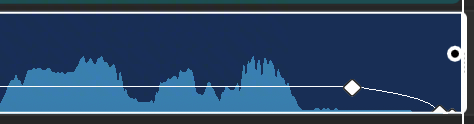
@Image1
Fix
Regenerate the video, or fade the ending audio to silence with a volume envelope. Near the end, drag the final volume keyframe down to 0 so the curve in @Image1 forms a downward slope.
Inaccurate Chinese pronunciation
Typical symptoms. The model is prone to mispronouncing polyphonic characters, uncommon characters, and characters with similar shapes.
Solution. You can replace text that is easy to misread with commonly used homophones with the same pronunciation, to avoid pronunciation deviations and restore the expected audio effect. This solution is only an optimization method and cannot completely avoid all pronunciation issues.
Example: you can rewrite "螭龙山" in the prompt as the homophone "吃龙山".
Before: the pronunciation of "螭" in "螭龙山" is incorrect. After: changing it to "吃龙山", the pronunciation is correct.
Prompt
Replace text that is easy to misread with a commonly used homophone of the same pronunciation. Rewrite "螭龙山" as "吃龙山". This is an optimization and cannot completely avoid all pronunciation issues.
Inaccurate voice reference
Typical symptoms. When using reference audio to specify a voice, the audio voice in the final generated video differs significantly from the reference voice.
Solution.
- Add detailed descriptions of voice characteristics in the prompt. The working line in this example is: use the low, thick, warm, and finely grainy middle-aged male voice of
@Audio1. - Keep the style of the video lines close to the tone and expression style of the reference audio, which helps improve voice restoration and stability.
In Multi Reference, that file is @Audio1. In the Seedance 2.0 family, pair the audio with at least one image or video.
Before: the voice does not match the input audio. After: adding descriptions of voice characteristics to the prompt, the voice matching accuracy improves significantly.
Reference input
@Audio1
Prompt
Use the low, thick, warm, and finely grainy middle-aged male voice of @Audio1. Keep the style of the lines close to the tone and expression of that reference audio.
Prompt examples
This section shows the official prompt examples for text generation, image reference, video reference, and video editing. The prompt on each card keeps the official sentence. Spoken lines and on-screen words are unchanged. @Image1, @Video1, and @Audio1 are this studio's tokens for Image 1, Video 1, and Audio 1. Where the official prompt says Image 1, Image 2, and Image 3, those are labels on one reference sheet, and that sheet is the single file @Image1.
Slogans
A slogan prompt names the words, when they appear, where they sit, how they enter, then the color and the font style.
Seedance 2.0 can match an appropriate text style based on the context. If you have strict requirements for text presentation, use the logo example under multi-image reference.
Reference input
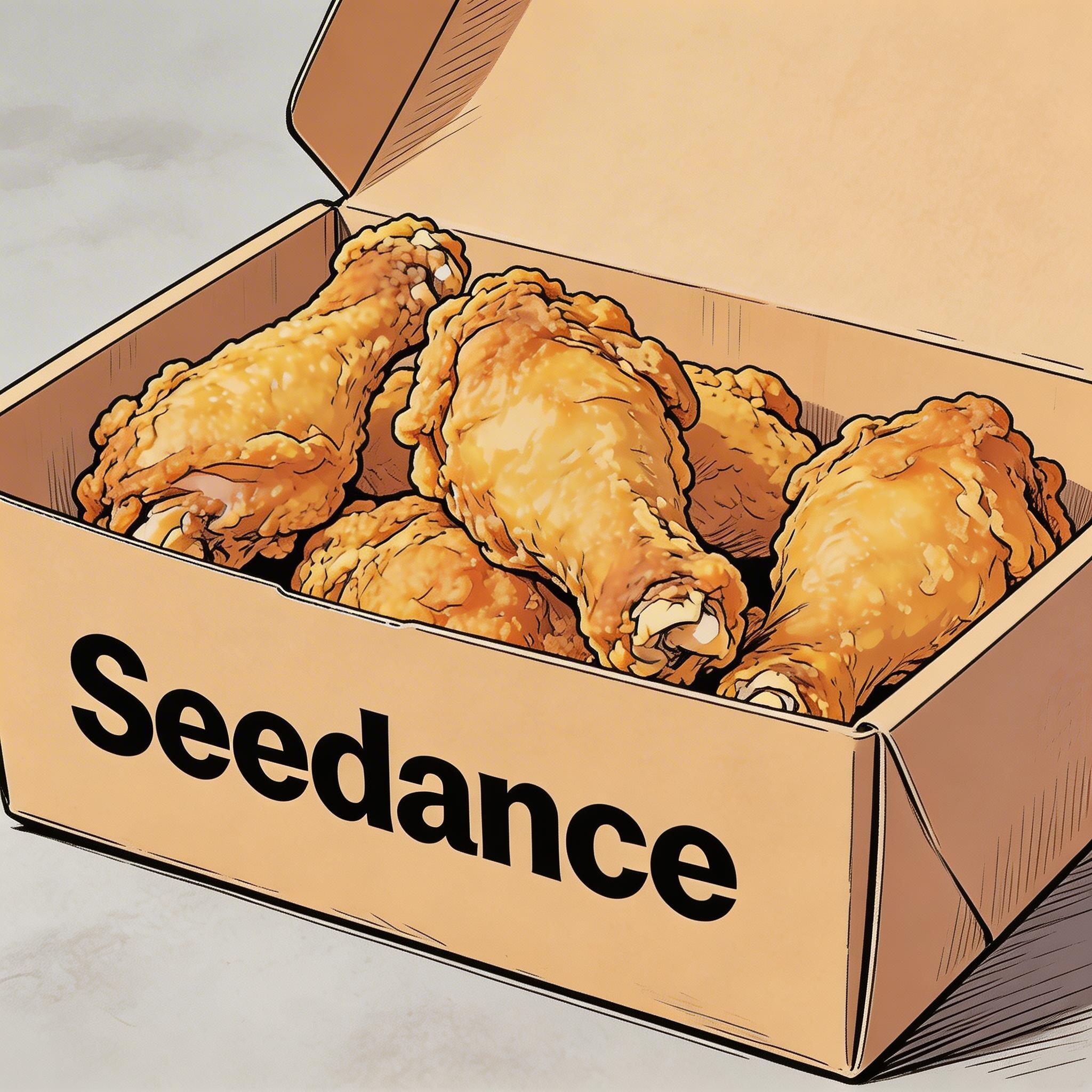
@Image1
Prompt
Hand-drawn comic style: Three people are sitting around a table enjoying the fried chicken shown in @Image1, with a friendly and joyful atmosphere. The frame then gradually blurs, and the text "Bite", "Laugh", and "Seedance" in order appears in the center of the screen.
Subtitles
Prompt template: display subtitles at the bottom-center with the text. The subtitles must be perfectly synchronized with the audio rhythm and pacing.
The first example is a voiceover. The second is dubbing.
Reference input
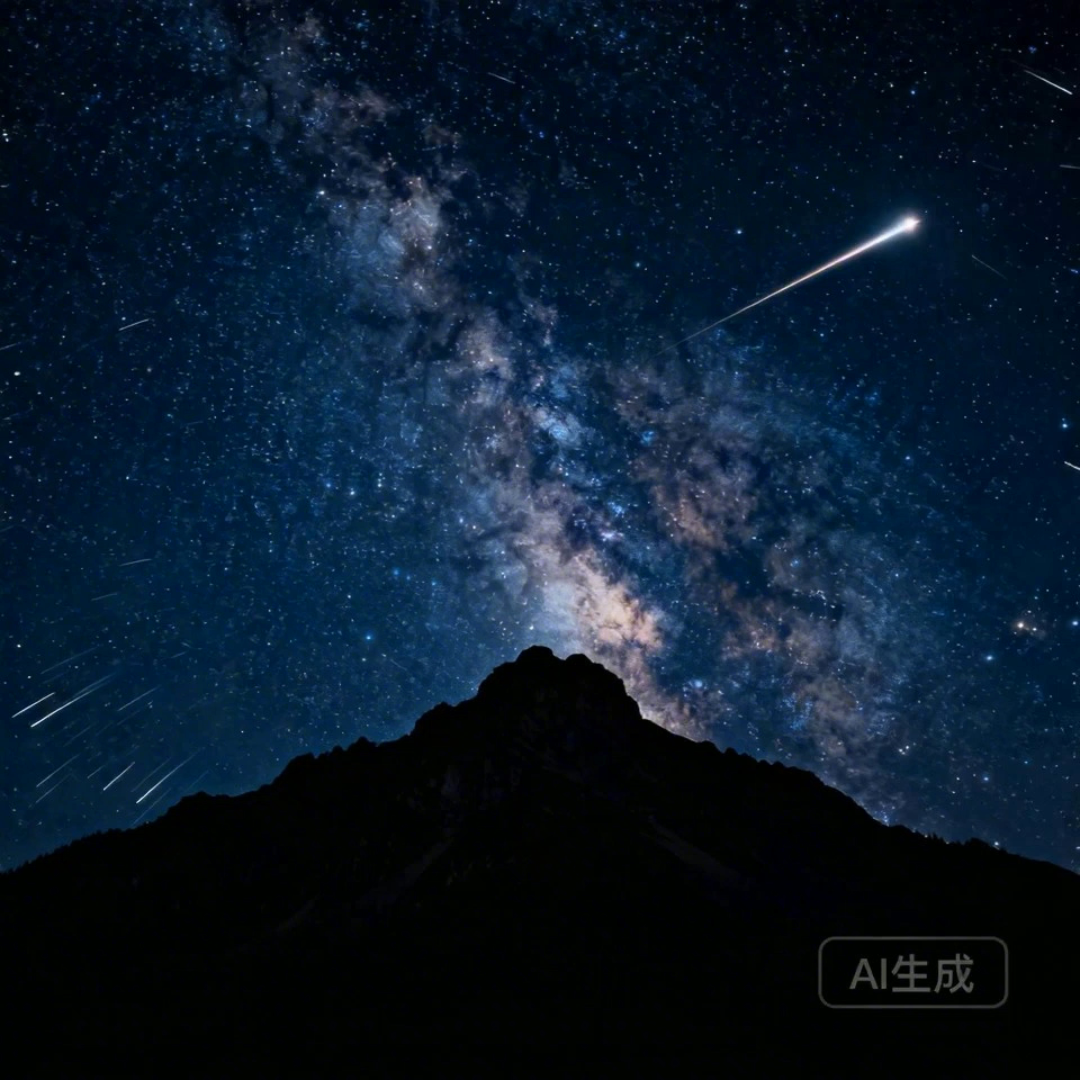
@Image1
Prompt
I2V: A time-lapse of a mountain landscape transitioning from a vast, starry night to a vibrant dawn. Reference @Image1. Voiceover: A deep, serene male voice says: "In the vast silence of the cosmos, our world is but a fleeting moment. Yet, within it, life defiantly thrives." Text integration: Render the narration as subtitles at the bottom-center. Subtitles must be perfectly synchronized with audio timing.
Reference input

@Image1
Prompt
R2V: A shot of these two people in @Image1 chatting in a modern office. The woman speaks first with a playful tone: "You always arrive right on time, don't you just love that perfect timing?" followed by the man's smiling reply: "I have my own rhythm." Text integration: Render the dialogue as subtitles at the bottom-center of the screen. Subtitles should appear sequentially as each character speaks.
Speech bubbles
The speech bubble contains the spoken line and appears beside the character who is speaking.
Reference input
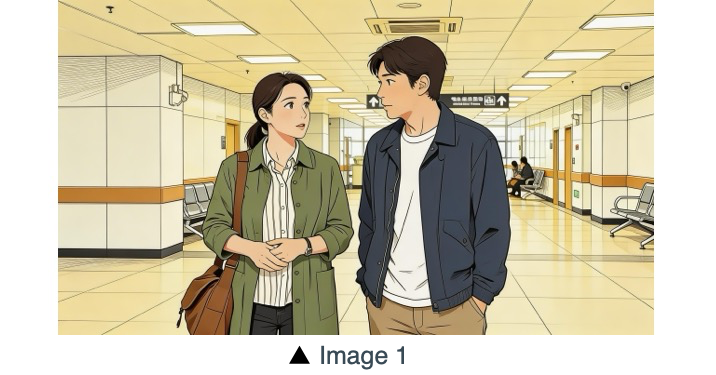
@Image1
Prompt
The two characters from @Image1, both dressed in sportswear, are running on the school playground. The girl looks at the boy, smiling confidently as she says: "We can definitely do it!". Cut to a close-up of the boy. He hesitates and replies: "Are you sure?". Cut back to a medium close-up of the girl. She speaks in a light, upbeat tone: "Yes!" Her demeanor is bright and resolute. Speech bubbles containing the corresponding lines appear around the speaking character.
Reference input
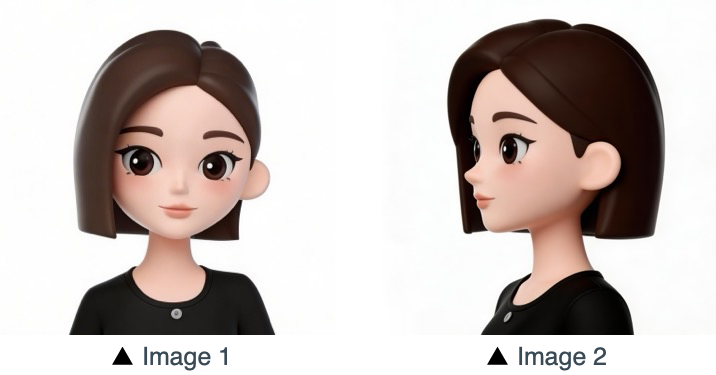
@Image1
Prompt
Refer to the character design of the girl in Image 1 and Image 2 on @Image1. The scene is set in an apple field: the girl picks one apple, takes a bite, smiles and says "This is the real deal!". A speech bubble pops up beside the girl, with this line written inside.
Multi-perspective subject reference
One subject, referenced from several angles on the sheet: consumer electronics, home and lifestyle, and a person.
Reference input
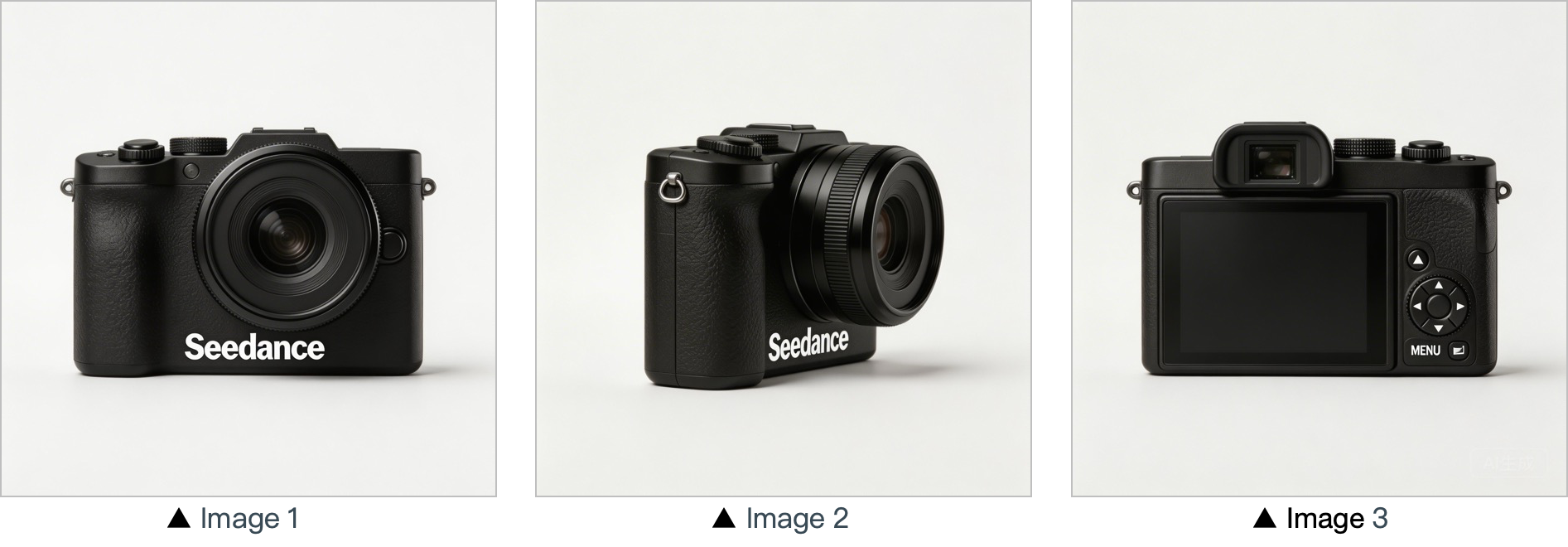
@Image1
Prompt
Use the cameras featured in Image 1, Image 2 and Image 3 on @Image1. Replace the original background with a white one, and place the cameras on a white table. The camera first focuses on the cameras in close-up, then slowly rotates 360° with the cameras as the main subject, clearly displaying the front, sides and back of each camera.
Reference input
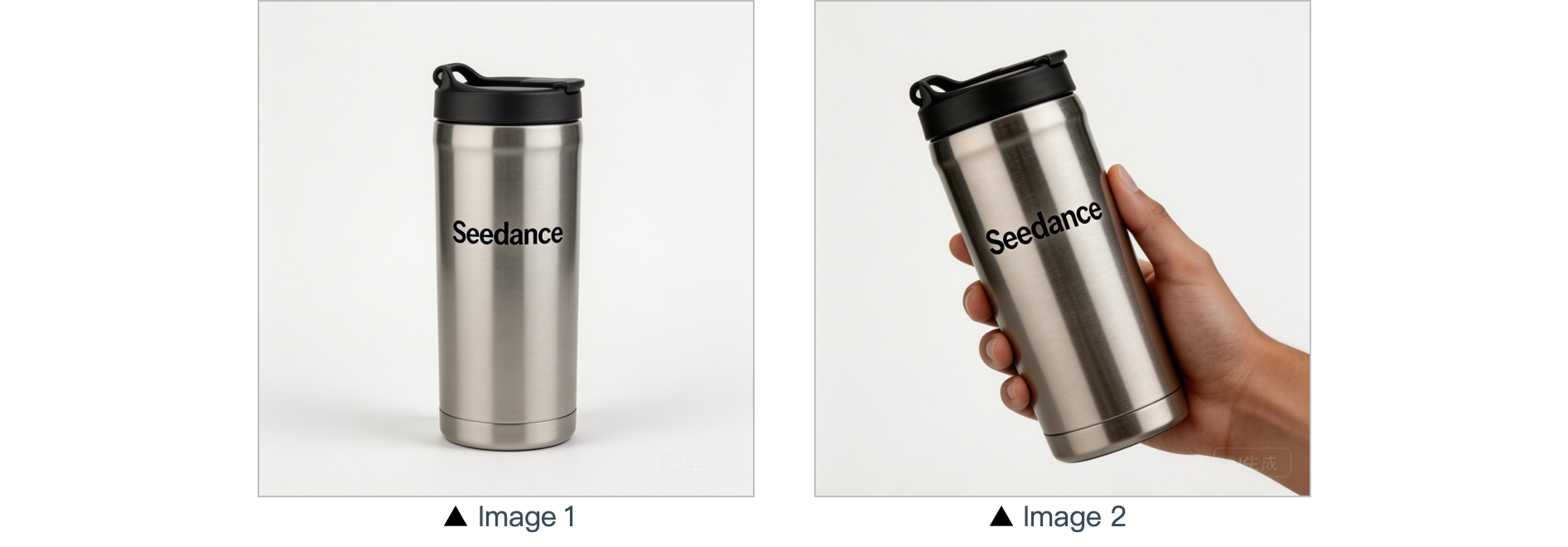
@Image1
Prompt
In a warm-toned home setting, present the thermos shown in @Image1 in a medium shot. Then smoothly push the camera into a close-up of the thermos. Next, a hand naturally enters the frame off-screen, gently grips the thermos body and picks it up. The camera follows the slight rotating motion of the hand to showcase the thermos.
Reference input
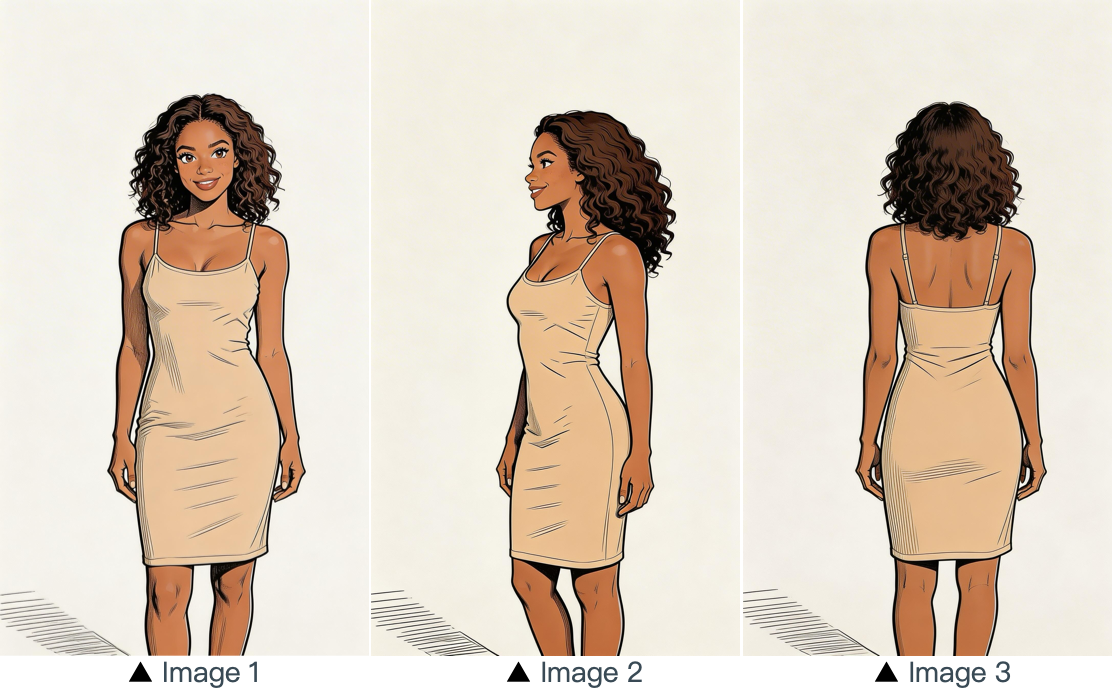
@Image1
Prompt
Refer to the image of the woman in Image 1, Image 2 and Image 3 on @Image1, and generate a scene of her eating a cake in a coffee shop.
Multi-image reference
Each picture on the sheet has one job: logo, multiple subjects, a cast and a place, a multi-panel sequence, or a sequence of frames.
Reference input
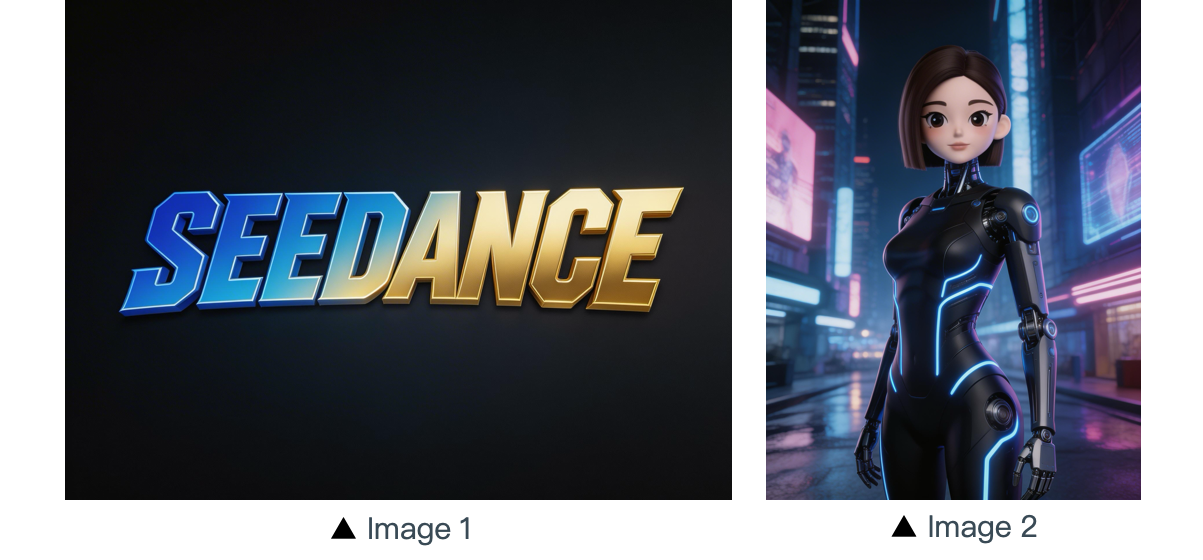
@Image1
Prompt
The scene is set on an aerial corridor in a neon-drenched futuristic metropolis, where flying vehicles and holographic ads intertwine. Featuring the girl from Image 2 on @Image1, the sequence opens with a medium shot of her releasing a silver floating lantern embedded with a holographic projection. The camera then pulls back to reveal floating lanterns flooding the sky, which gradually converge at the center of the frame to form the logo from Image 1 on @Image1. The entire piece adopts a 3D cyberpunk sci-fi animation style.
Reference input
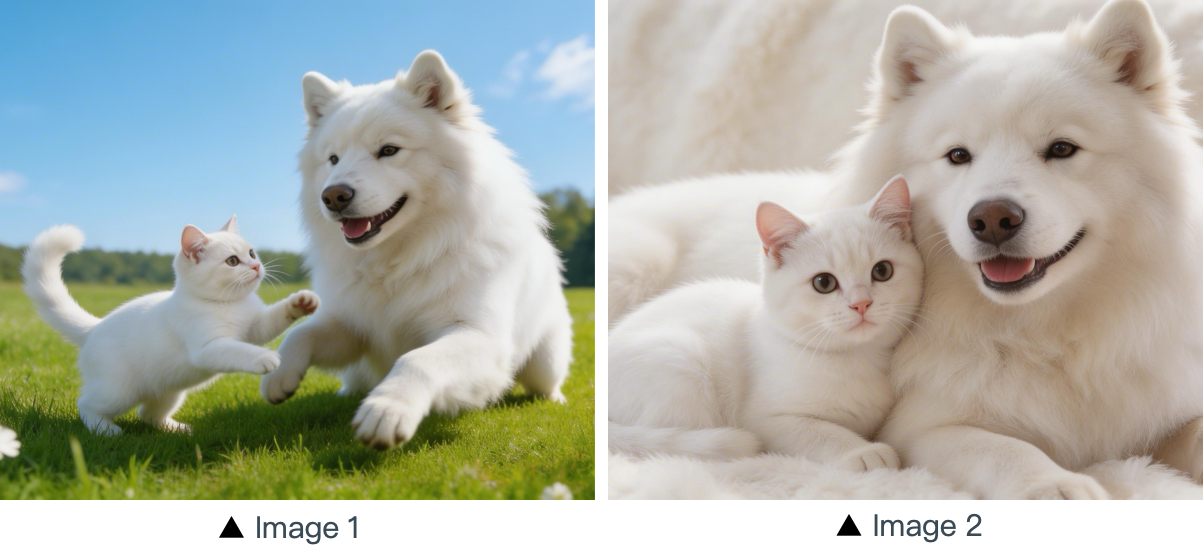
@Image1
Prompt
Using the cat and dog from Image 1 and Image 2 on @Image1 as prototypes, the scene unfolds in a cozy apartment. The dog is lying on the ground eating dog food when the cat approaches, extending a paw to nudge the dog. The dog pauses its meal upon noticing the cat, and the cat snuggles up next to the dog. The entire scene features a warm colored tone.
Reference input
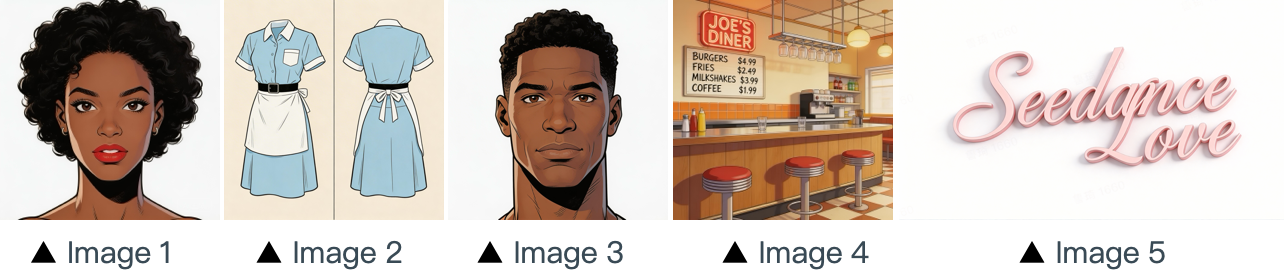
@Image1
Prompt
The scene is set in the restaurant from image 4 on @Image1, with people coming and going. The girl from image 1, wearing the clothes from image 2, is organizing the items on the counter. The boy, a customer, from image 3 approaches her to ask for her contact information. The logo from image 5 remains in the bottom right corner throughout.
Reference input
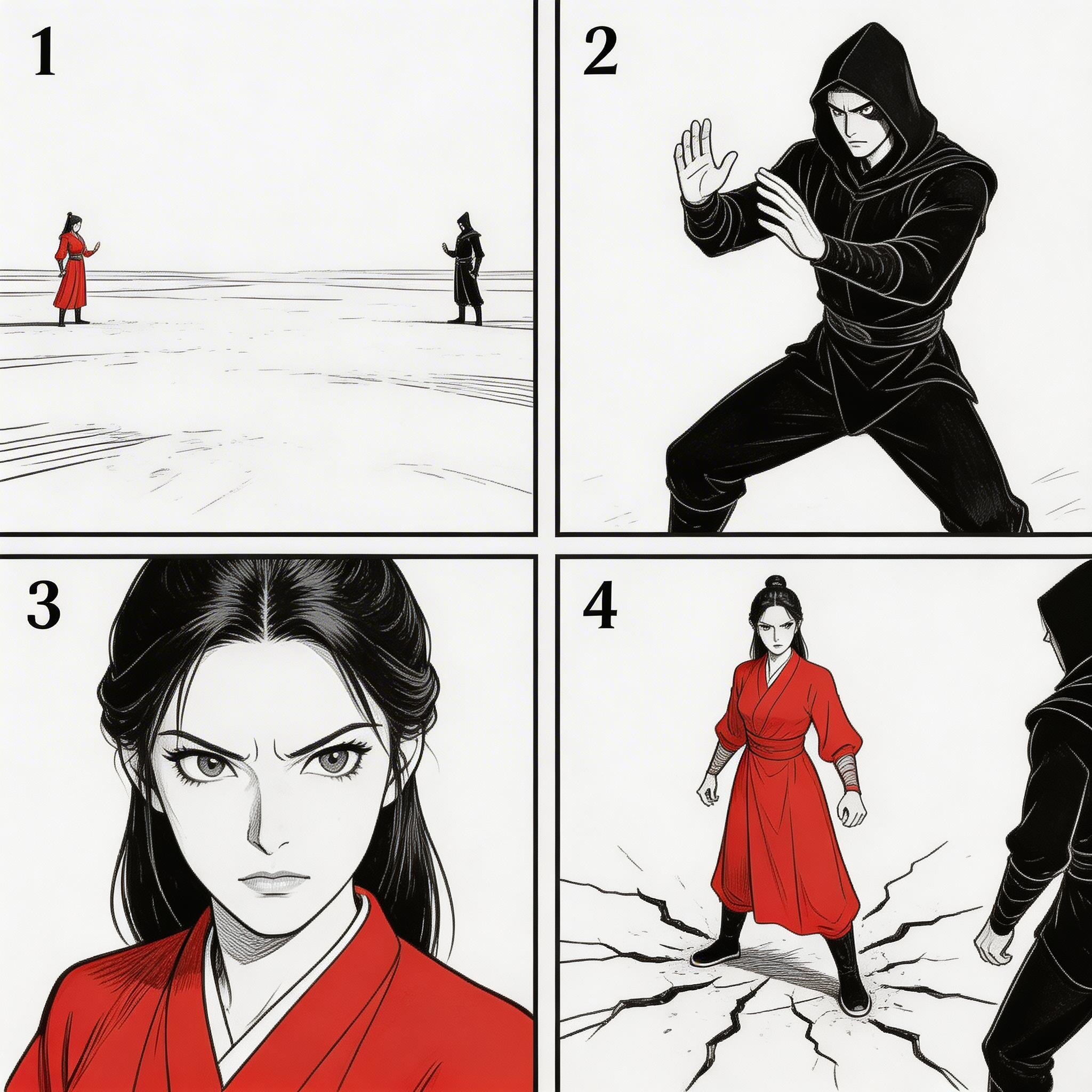
@Image1
Prompt
Refer to the sequence in @Image1 to create an intense high-energy fight sequence. All frame compositions from @Image1 shall be presented in strict predefined order, after which the two characters engage in fierce, fast-paced combat.
Reference input
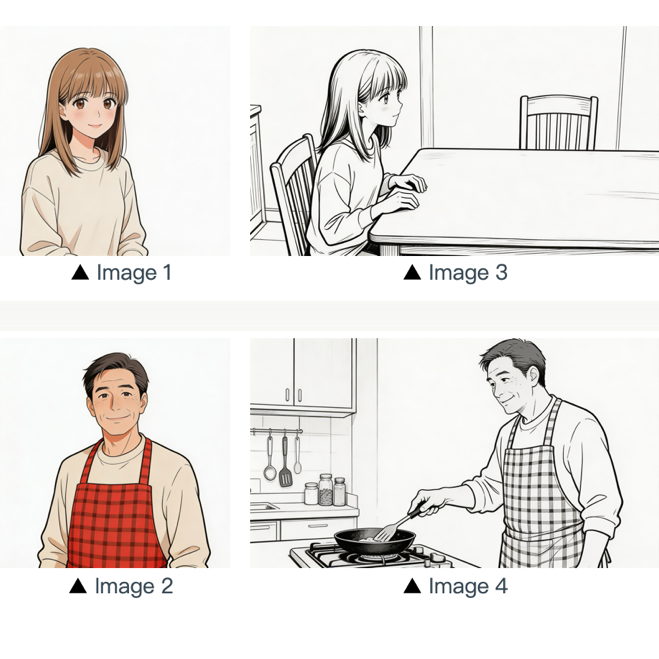
@Image1
Prompt
Refer to the composition in Image 3 on @Image1. A girl (her character design refers to Image 1) is waiting for her father to finish cooking, and she says: "아빠, 배고파요! 밥 다 됐어요?" Then the camera pans right and cuts to the frame and composition shown in Image 4. The father (his character design refers to Image 2) replies to her: "거의 다 됐어, 조금만 기다려!" Next, the camera cuts back to a close-up shot of the daughter's slightly disappointed facial expression, and she says: "아직 멀었어요? 맛있는 냄새 나는데..." Then the shot switches to a close-up of the father's face, and he says: "이제 진짜 금방이야. '빨리빨리' 하지 말고 손부터 씻고 와!"
Motion reference
Reference the character movements and shot language in the video, then apply them to the characters in the image. The marketing example references the running shape of the horse in the video.
Reference input
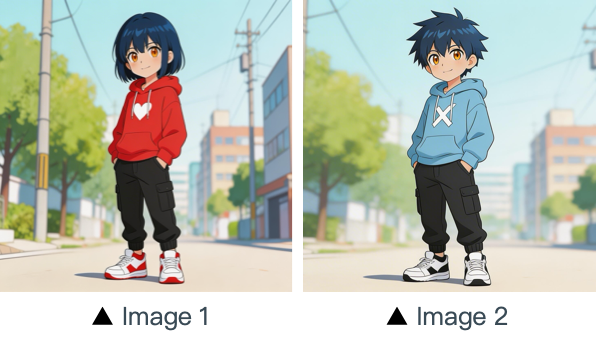
@Image1
@Video1
Prompt
Refer to the character movements and shot language in @Video1 to create a fight scene with the character from Image 2 on @Image1 on the left and the character from Image 1 on @Image1 on the right. Include intense background music.
Reference input
@Video1
Prompt
Referencing the running shape of the horse in @Video1, generate a scene: a golden steed runs on the grassland, then freezes its magnificent running posture and turns into a horse-shaped gold pendant.
Camera motion reference
Reference the camera movement in the video, and name the new subject in the image.
Reference input
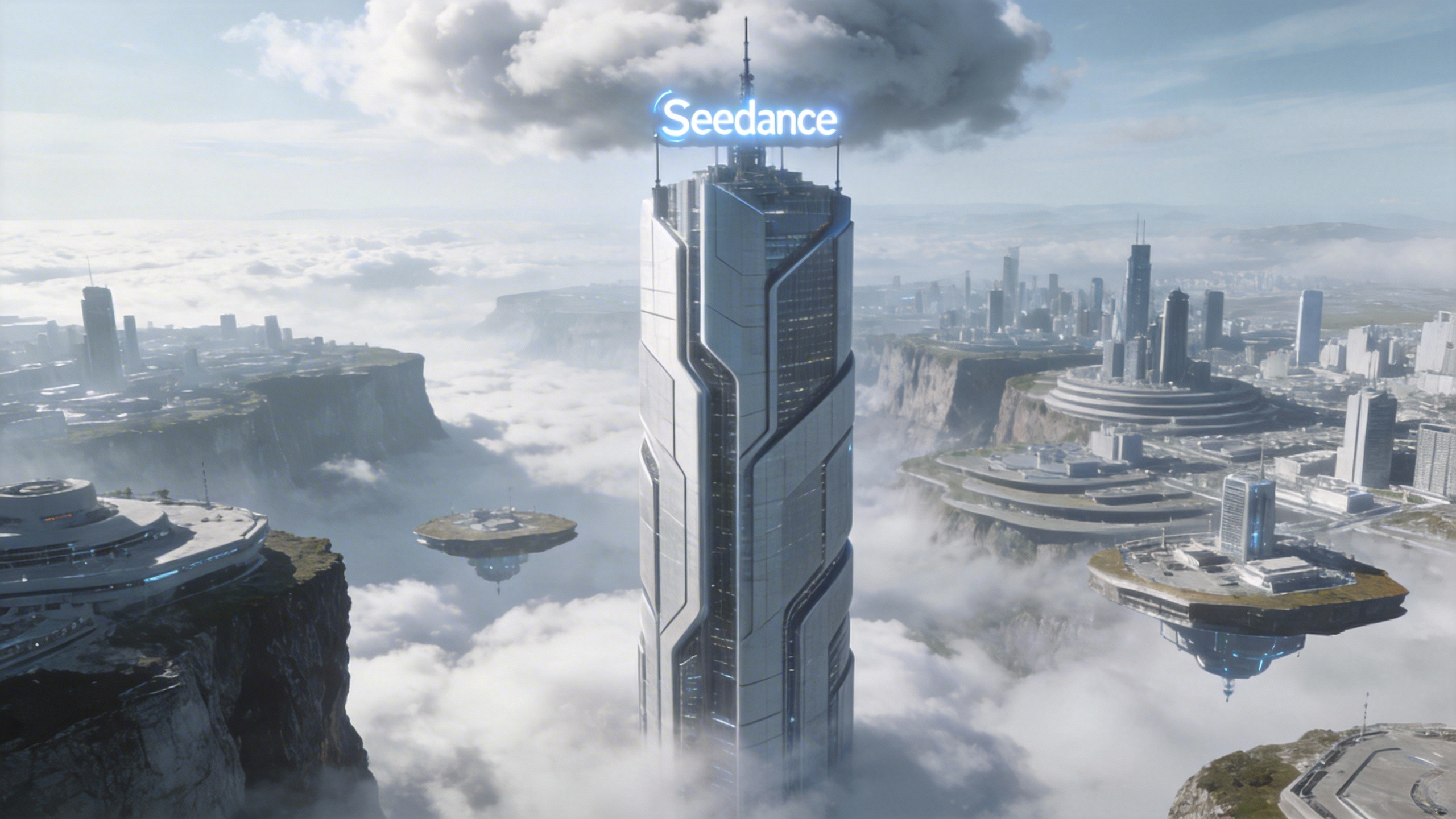
@Image1
@Video1
Prompt
Referring to the camera movement in @Video1, create a concept video for a science and technology park, with the tall building in @Image1 as the visual center, also using a first-person diving perspective, to reflect the sense of technology in the park from @Image1.
Special effects reference
Reference the special effect in the video, and apply that same effect, path, and sequence to the character in the image.
Reference input
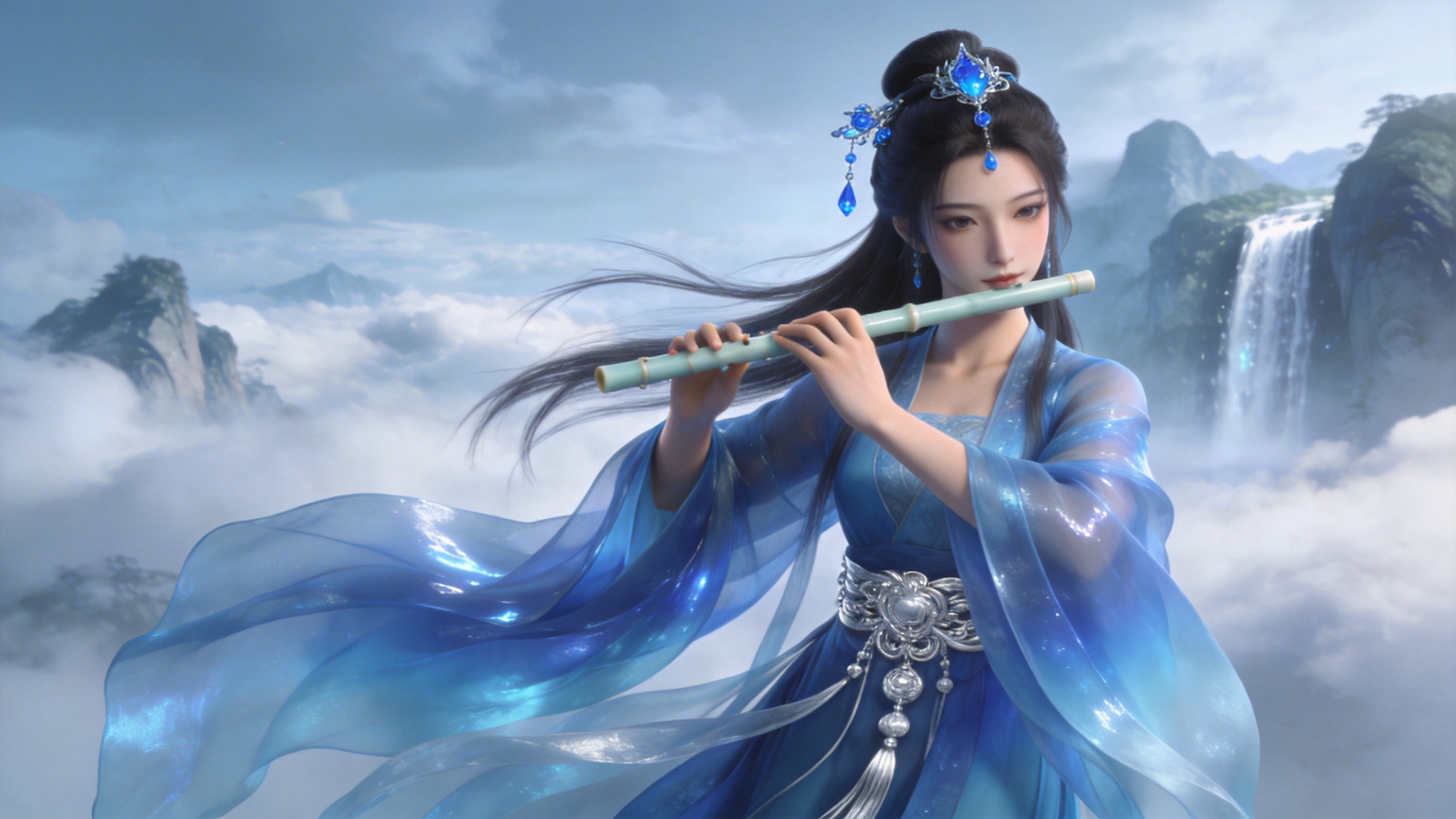
@Image1
@Video1
Prompt
Refer to the golden particle effects in @Video1, so that when the character in @Image1 plays the flute, the same particle effects surround their body.
Reference input
@Image1
@Video1
Prompt
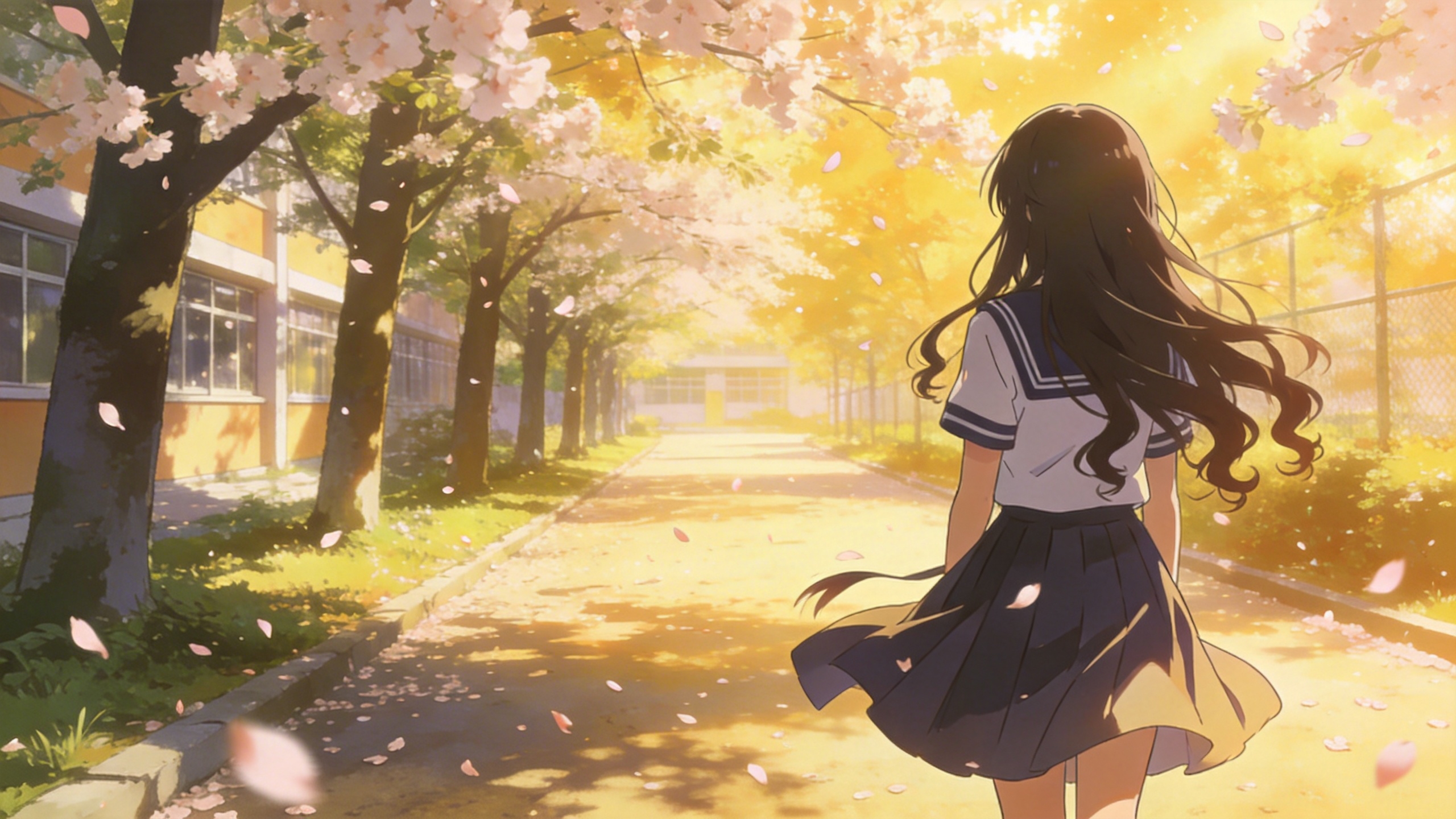
Refer to the special effects shown in @Video1 to generate identical wings for the girl in @Image1, ensuring the wing formation trajectory follows the exact same motion path and sequence depicted in the video.
Adding, removing, or modifying elements
Add, remove, or replace. For an edit, do not write "reference". Parts not mentioned remain unchanged.
Reference input
@Video1
Prompt
Add snacks such as fried chicken and pizza to the countertop in @Video1.
Reference input
@Video1
Prompt
Remove everything that isn't office supplies from the table in @Video1, keeping the rest of the video content unchanged.
Reference input
@Image1
@Video1
Prompt
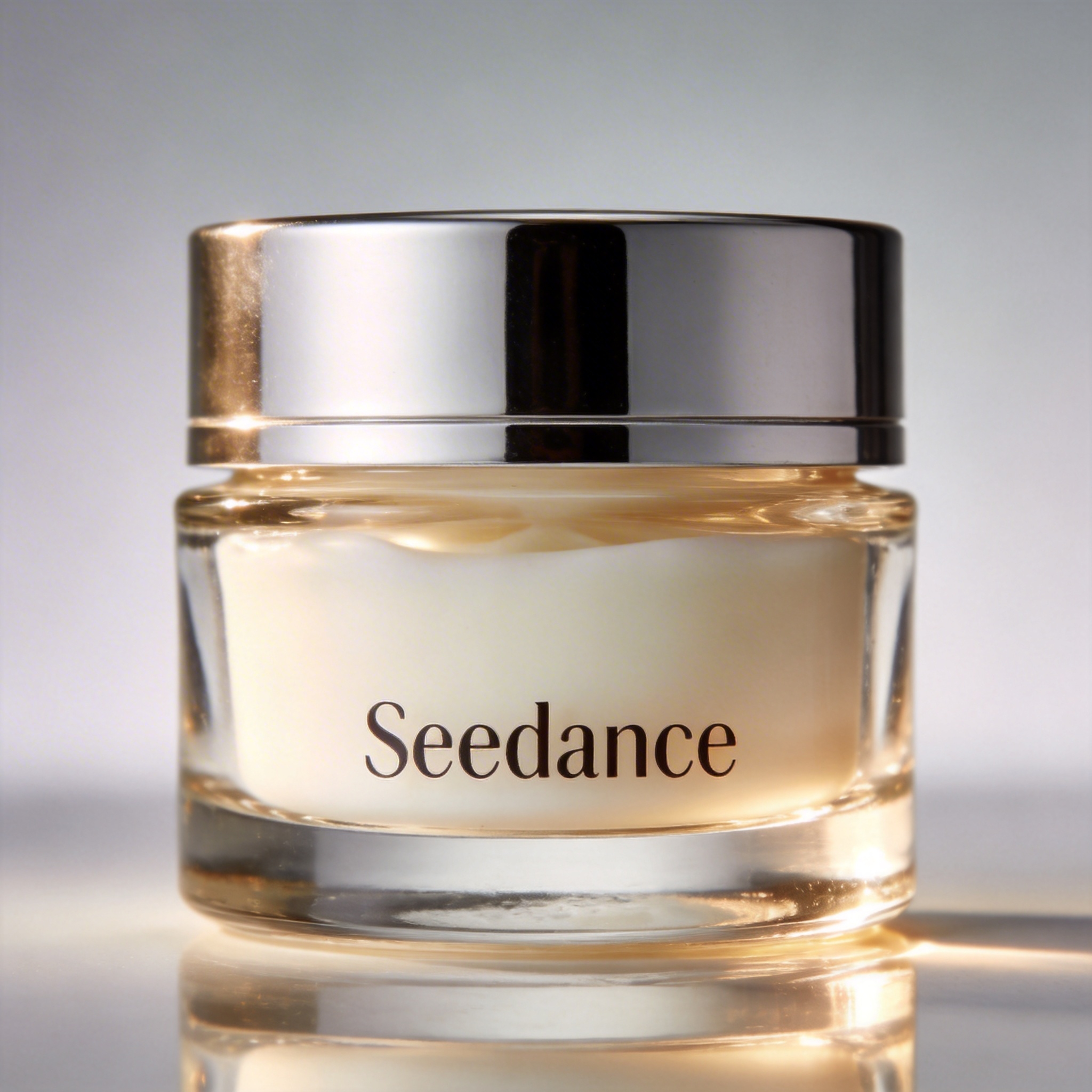
Replace the perfume featured in @Video1 with the face cream from @Image1, with all original motions and camera work preserved.
Extending videos
Extend forward generates the content after the video. Extend backward extends the opening segment of the video.
Reference input
@Video1
Prompt
Generate the content after @Video1: the two men who are late run towards them, the five people finally meet and have a friendly chat.
Reference input
@Video1
Prompt
Extend the opening segment of @Video1: Set up an over-the-shoulder shot of the man in a hoodie, and the man says: "It's not that bad. You're just stressed. Everyone goes through this, you just need to keep going."
Completing tracks
@Video1, then the bridge, followed by @Video2.
Reference input
@Video1
@Video2
Prompt
@Video1. The moment a leaf falls to the ground, it sets off a special effect of golden particles. A gust of wind blows by, leading into @Video2.
Limits at a glance
| Seedance 2.0 family | |
|---|---|
| Reference images | Up to 9 |
| Reference videos | Up to 3, 2–15 s each, 15 s total |
| Reference audio | Up to 3, 2–15 s each, 15 s total |
| Output length | 4–15 s |
| Output resolution | 2.0: 480p–4K; Fast and Mini: 480p / 720p |
Reference videos should be 480p or 720p at 24–60 fps.